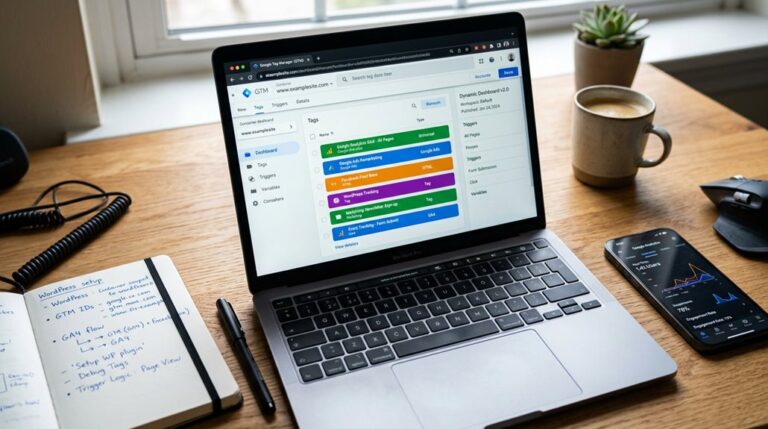
Best Heatmap Tool for WordPress Sites
The best heatmap tool for your WordPress site depends on your needs, but options like Hotjar, Crazy Egg, or Microsoft Clarity are solid choices. Hotjar offers all-encompassing features like session recordings and feedback polls, while Crazy Egg focuses on ease of setup and advanced visualization. Microsoft Clarity is a capable free option—if you don’t mind a simpler interface. Choosing the right fit requires considering your traffic volume, feature priorities, and budget; stick around and you’ll get smarter about making the most of these tools.
TLDR
- Choose tools with easy WordPress integration, such as one-click plugins or code snippets, for seamless setup.
- Prioritize features like session recordings, conversion funnels, and advanced filtering to gain actionable insights.
- Consider popular options like Crazy Egg, Hotjar, Mouseflow, and Microsoft Clarity based on your budget and needs.
- Ensure the tool offers data export, customizable reports, and mobile/desktop tracking for comprehensive analysis.
- Select a heatmap tool aligned with your website goals to optimize user experience, increase conversions, and reduce bounce rates.
Why You Need a Heatmap for Your WordPress Site

Understanding where visitors focus their attention on your WordPress site is essential for making informed design and content decisions. A heatmap visually reveals visitor behavior, showing click, scroll, and hover patterns that traditional analytics often miss. Incorporating safe automation practices ensures you can leverage tools effectively without triggering Google penalties or spam filters. This data helps you identify usability issues, optimize content placement, and enhance engagement—saving you from guesswork and ensuring your site truly serves your audience’s interests.
Key Features to Look for in a WordPress Heatmap Plugin
When selecting a WordPress heatmap plugin, ease of integration is critical—if setup feels like decoding a foreign language, you’ll likely abandon it before meaningful data accrues. Advanced customization options, like filtering by device or date, allow you to focus on specific segments without drowning in raw numbers, saving both time and frustration. After all, a tool that’s difficult to configure often ends up being a missed opportunity rather than a strategic advantage. Additionally, understanding local search traffic can help you better target high-value audiences and avoid focusing on keywords that bring little return. Incorporating insights from hosting providers ranked by real load time performance can also ensure your heatmap analysis reflects accurate user engagement data.
Easy Integration Process
Choosing a heatmap plugin that’s easy to integrate can save you a lot of headaches down the line.
Look for a WordPress plugin with straightforward, easy installation, ideally with one-click setup or simple script embedding.
Clear, step-by-step instructions and native WordPress support guarantee seamless integration, reducing compatibility issues and saving you time—because even plugins should respect your busy schedule.
Advanced Data Customization
Advanced data customization is essential if you want your heatmaps to deliver meaningful understandings rather than just pretty visuals. Look for plugins offering element-level tracking to monitor interactions with individual buttons, links, or hidden elements.
Segmentation options by demographics or referral sources help tailor analysis. Custom dashboards and export features further enhance practical use, ensuring you make data-driven decisions confidently.
Comparing the Best WordPress Heatmap Plugins
Comparing the best WordPress heatmap plugins requires a clear understanding of their core strengths and limitations, especially since each tool tends to excel in different areas. Here are some key points: 1. Crazy Egg offers easy setup, confetti reports, and A/B testing. 2. Hotjar provides an all-in-one solution with session recordings and feedback polls. 3. Mouseflow supports interactive element tracking. 4. Microsoft Clarity is free, with unlimited data and AI analysis. Additionally, understanding how these tools internal linking impact in performance can help you choose the most effective option for your needs.
How to Set Up and Install a Heatmap Plugin on WordPress
Setting up a heatmap plugin on your WordPress site is straightforward if you follow a few practical steps—provided you choose a compatible tool like Crazy Egg, Hotjar, or Mouseflow.
You’ll need to insert a tracking code, which can be done manually or through plugins like Headers and Footers. After installation, verify data collection and regularly monitor your heatmap reports for understanding. Proper content optimization is also essential to ensure accurate insights from your heatmaps.
Additionally, consider exploring Ad Networks for Small Sites That Boost Revenue, which can help monetize your site even with lower traffic levels.
How to Analyze Heatmap Data to Improve Engagement

When analyzing heatmap data, focus on identifying which areas draw the most attention and clicks, as these observations reveal what your visitors find most engaging.
Pay close attention to scroll maps to spot where users lose interest, then adjust content length or layout accordingly—don’t just assume longer is better.
Ultimately, scrutinize click patterns on calls to action to determine if they’re effectively capturing interest or need repositioning; small tweaks here often yield big engagement improvements.
Identify High-Interest Areas
Analyzing heatmap data effectively starts with understanding where visitors focus their attention. To identify high-interest areas, consider:
- Examining click patterns to see what draws engagement.
- Comparing device-specific visitor behavior for layout tweaks.
- Reviewing scroll maps to spot ignored content.
- Using session recordings for insights on why certain areas attract clicks.
This approach helps optimize your site based on real visitor behavior.
Detect Usability Challenges
Identifying usability challenges through heatmap data involves more than just spotting where users click; it requires a careful interpretation of patterns indicating friction points or confusion.
Look for areas with high click density but low engagement, or sections users scroll past without interaction.
Combining heatmaps with session recordings helps clarify these usability issues, guiding targeted improvements that genuinely enhance engagement.
Optimize Content Placement
Looking at heatmap data to optimize your content placement isn’t just about spotting where users click most; it’s about understanding the story those clicks tell.
- Prioritize high-engagement sections for content placement.
- Use scroll maps to position key info higher on the page.
- Reposition or replace underperforming elements based on click maps.
- Compare device heatmaps to tailor for desktop and mobile user engagement.
Adding Session Recordings for Deeper User Insights
Adding session recordings to your heatmap toolkit might seem like overkill at first, but they’re invaluable for understanding visitor behavior. They help you see movement patterns, clicks, and frustrations, revealing perspectives heatmaps alone can’t provide.
How Much Do WordPress Heatmap Tools Cost? A Pricing Breakdown
Understanding the costs of WordPress heatmap tools helps you avoid overspending on features you don’t need or missing out on affordable options that fit your budget.
While free versions like Microsoft Clarity can provide basic understanding, paid plans—ranging from around $10 to $30 per month—offer more detailed data and advanced capabilities.
Keep in mind that enterprise solutions can run into hundreds or thousands monthly, so it’s essential to align your needs with the right pricing structure to avoid surprises.
Pricing Structures Overview
WordPress heatmap tools come with a surprisingly diverse pricing terrain, designed to accommodate a wide range of budgets and needs.
- Free options like Microsoft Clarity suit small sites or testing.
- Entry-level paid plans start around $10–$30/month, including features like unlimited page tracking.
- Many tools offer free trials, typically 14–30 days, before paid plans kick in.
- Enterprise solutions can exceed $100/month, reflecting advanced analytics and higher traffic.
Free Versus Paid Options
While free heatmap tools like Microsoft Clarity and Hotjar are tempting—especially for small sites or testing purposes—their capabilities are often limited to basic tracking and data visualization.
Paid options, such as Crazy Egg and Lucky Orange, start around $29–$39 monthly, offering advanced analytics, longer data storage, and heatmap plugins.
Many provide free trials, helping you evaluate before investing.
Pros and Cons of Leading Heatmap Plugins for WordPress
Choosing the right heatmap plugin for your WordPress site means considering each tool’s strengths against its limitations—because not all heatmaps are created equal, and what works well for one site may fall flat on another.
- Crazy Egg offers ease of use but needs manual setup for advanced features.
- Hotjar is all-encompassing but can slow down high-traffic sites.
- Mouseflow excels with interactive content but is pricier.
- Microsoft Clarity is free, straightforward, but limited in features.
Real-Life Examples of Heatmaps Improving WordPress Sites

Real-world examples show how heatmaps can directly impact website performance, often in ways that surprise even seasoned marketers. Here’s a quick look:
| Business Type | Key Improvement | Result |
|---|---|---|
| Fitness eCommerce | Clicks on images over CTAs | 20% more conversions |
| Online Publisher | Low scrolling, content restructuring | 15% higher engagement |
| SaaS Website | Confusing orientation, simplified menu | 12% lower bounce rates |
| Apparel Retailer | Mobile checkout visibility issues | 25% increase in mobile sales |
Tips for Choosing the Right Heatmap Tool for Your Business Goals
Selecting the right heatmap tool begins with understanding your specific business goals and how you plan to use the data. Focus on these factors:
- Compatibility with WordPress integration for seamless setup
- Features like session recordings or conversion funnels aligned with your needs
- Pricing plans and data storage limits fitting your budget and traffic volume
- Customizable filtering options, such as device type or traffic source, to target your audience segments
And Finally
In my experience, choosing the right heatmap tool hinges on understanding your specific goals and site complexity. Focus on accurate data, easy setup, and reliable support—these matter far more than flashy features. Remember, heatmaps aren’t magic; they reveal user behavior, but interpreting that data correctly takes thought. Don’t fall for the myth that all heatmaps are equal or that a quick install guarantees understanding. A grounded, methodical approach saves you time and delivers results.